iPhone, iPad and Android
Choir practice on your own
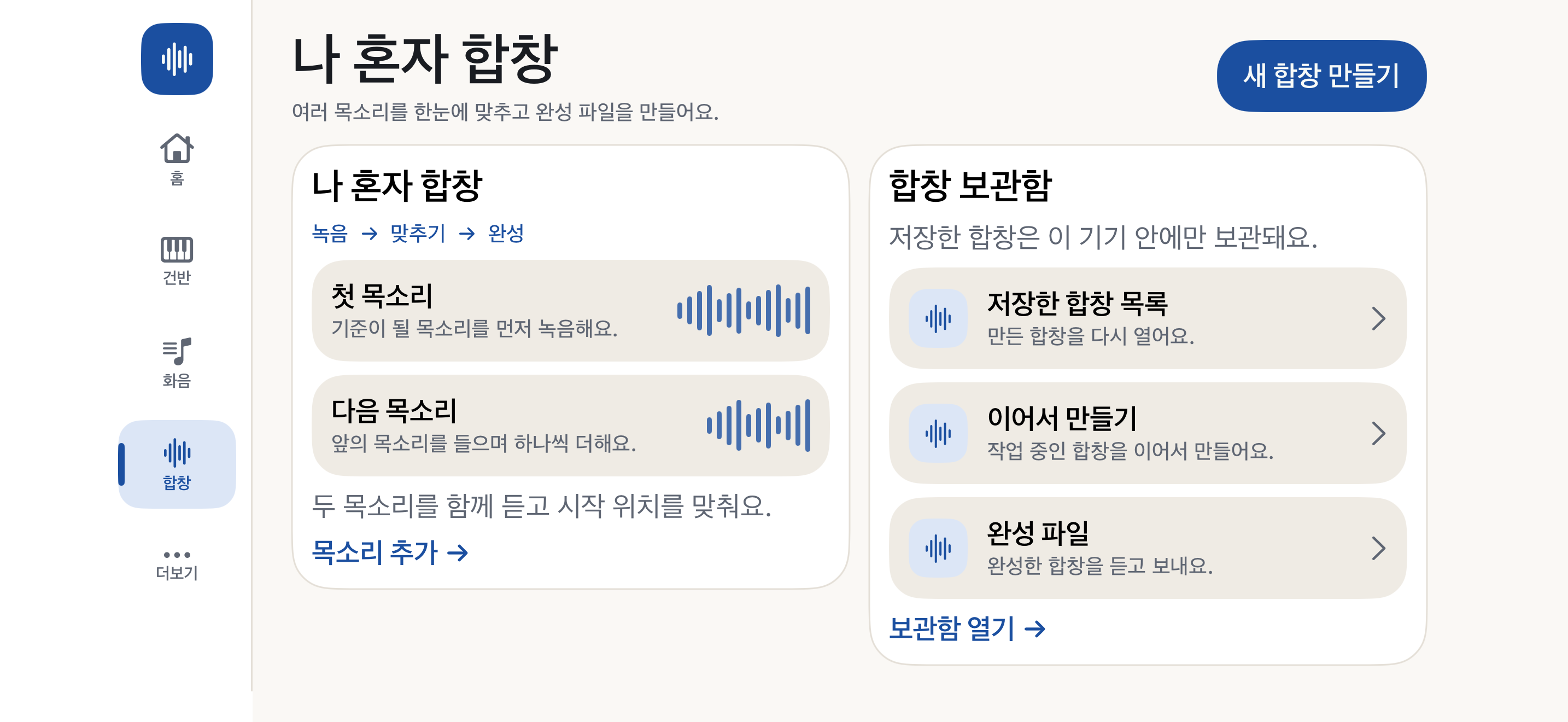
Try voice layering with up to four recordings. Adjust each voice’s volume and timing to hear how your solo choir blends.
Explore choir practice →Make a choir from your own voice or add harmony to your singing on iPhone, iPad and Android. Explore piano chords, play the keyboard and try pitch and ear training challenges.
Explore pitch & ear training challenges →
The app supports Korean and English. Screenshots here show the Korean interface. Check features for your device.
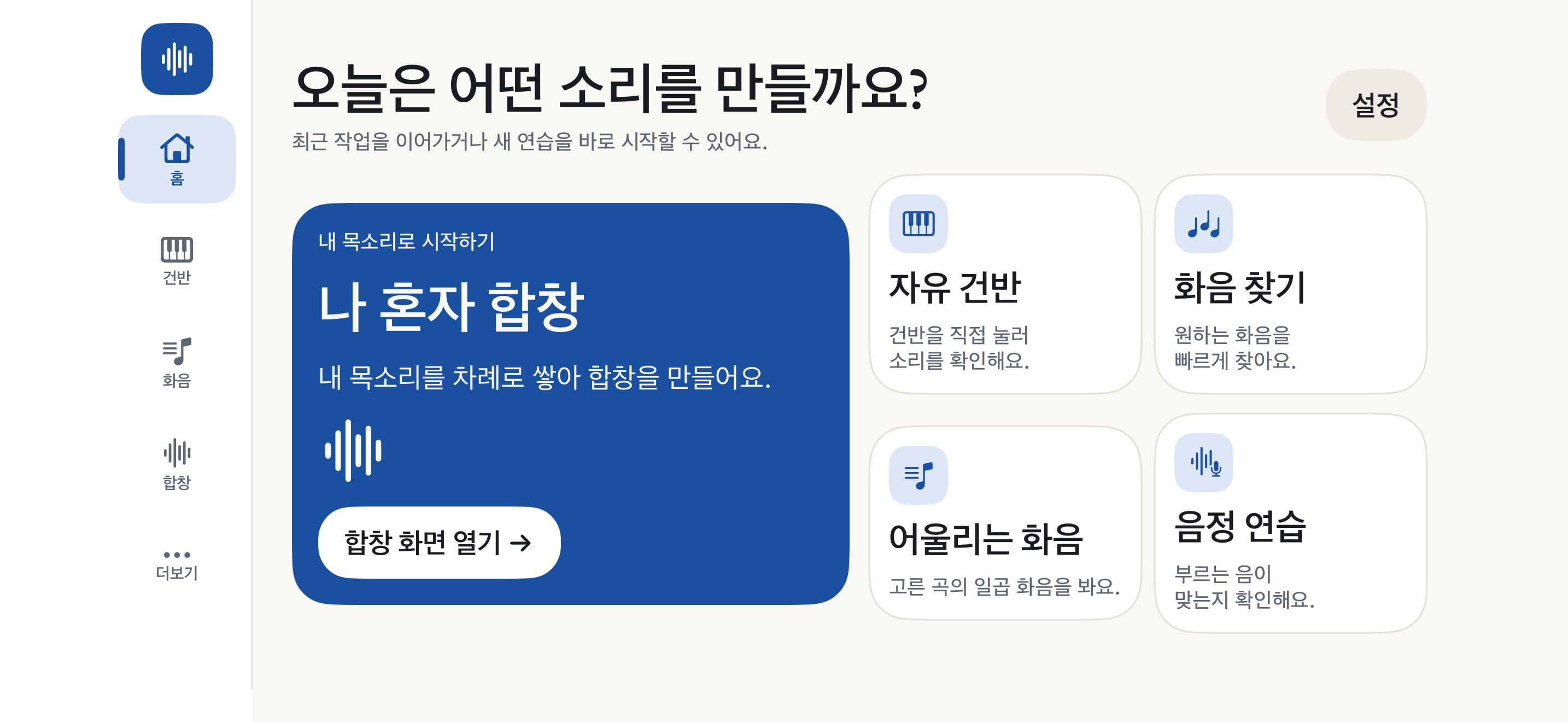
Layer your own singing or hear how piano notes fit together. Start with a short phrase or one note.
iPhone, iPad and Android
Try voice layering with up to four recordings. Adjust each voice’s volume and timing to hear how your solo choir blends.
Explore choir practice →iPhone, iPad and Android
Record your singing without backing music. The app adds vocal harmony so you can compare the original and the result.
See how to add harmony →iPhone, iPad and Android
Choose a note in the chord finder app and tap a chord to hear it. Its notes appear on the keyboard as it plays.
See the piano chord chart →iPhone, iPad and Android
Use theHarmony as a piano keyboard app. Play a note as a singing reference or compare several notes together.
Start piano chord practice →Your own choir · iPhone, iPad and Android
Looking for a choir app? Record one part, then listen through headphones while you sing another. Hear where each voice comes in and how the parts sound together.
Choir practice · iPhone, iPad and Android
Harmony maker · iPhone, iPad and Android
Piano chords · iOS and Android
Open Challenges in the latest app on iPhone, iPad or Android. Match a note with your voice or listen and choose the name of the note you hear.
Sing the note you hear using the microphone. In practice, a graph shows the difference between your voice and the target note.
Listen without a reference note, then choose the note you heard. This ear training quiz does not use the microphone.
Sign in and finish an official challenge to keep your result. Choose whether to share your app-generated nickname and score on the leaderboards. You can turn sharing off.
Update from the App Store or Google Play. Practice without signing in. Sign in to keep official records, and choose separately whether to share them on the leaderboards.
Play the keyboard, find chords, add harmony to a recording, make a layered choir and try pitch and ear training challenges. Requires iOS 17 or iPadOS 17 or later.
The app includes ads. Ad removal, the male voice and the female voice are separate one-time purchases. Check the price in the app before buying.
View on the App StoreCreate vocal harmony, record a solo choir, play the keyboard and find chords. Pitch and ear training practice, official challenges and leaderboards are also available. Check Google Play for the features and devices supported by the current release.
The app is free to download and includes ads.
View on Google PlayRead the website in English or 한국어. The app supports Korean and English. Screenshots here show the Korean interface.
Add harmony to your singing, record your own voice in layers to make a solo choir, or explore piano notes and chords. You can also practice pitch matching and note identification and take official challenges.
The latest app on iPhone, iPad and Android offers harmony creation, solo choir recording, the keyboard, chord finder and pitch and ear training challenges. Screens and button layouts may differ by device.
Update from the App Store or Google Play and open Challenges. Match a note with your voice for pitch practice, or listen and choose its name for ear training. Start with practice or sign in to take official challenges.
You can start pitch and ear training practice on your device without signing in. To keep official challenge records, sign in with Apple or Google and follow the participation guidance in the app.
Voice recording and pitch matching ask for microphone permission. Note identification quizzes, the keyboard and chord listening work without the microphone.
Your app-generated nickname and score appear only if you opt in. You can turn sharing off in your challenge account. Your personal challenge records remain until you delete the account.
Choose account deletion in the challenge account screen. Sign in again with the same Apple or Google account to confirm. This deletes the sign-in connection, official answers and scores, nickname and sharing setting.
Yes. Play the on-screen keyboard or choose a note in the chord finder. Tap a chord to hear it and see its notes highlighted on the keyboard.
Yes. Start by listening to one comfortable note on the keyboard. Compare two chords containing that note and look for the notes that change.
Choose a note and a chord in the chord finder, then listen. Look at the highlighted notes and alternate between two chords to hear how their sounds differ.
Open harmony creation in the latest app and record your voice without backing music. The app follows the notes in your singing to create harmony. Keep the original and the result on your device and compare them by listening.
Yes. On iPhone, iPad or Android, record one part in Your own choir and sing the next while listening through headphones. Layer up to four voices, adjust their volume and timing, then share the finished choir using an app you choose.
The app is free to download and its basic features include ads. Ad removal, the male voice and the female voice are separate one-time purchases. Check the price and details shown in the app before buying.
Sign in with the Apple or Google Play account used for the purchase and choose Restore purchases in the app. Ad removal and additional voices are restored according to the items you bought. Contact the support email if you need help.
Recording and harmony creation happen on your device, where the original and finished files are kept. Official challenges store answers and the summary information needed to verify scores on the server. Choosing to share a finished choir sends that one file to the app you select.
Yes. Choose usage statistics and problem reporting separately in the app settings. The privacy information explains how these choices work and how to delete usage records.
Yes. The latest app supports Korean and English on iPhone, iPad and Android, and this website is available in both languages. Choose a language in the app settings. Screenshots in these guides show the Korean interface.
English website updated: · Privacy information (Korean) · Terms (Korean)
Try the keyboard, compare a chord or record your first choir part.
Need help? Email hotddoggu@gmail.com.